4- How to add unlisted tokens (custom tokens) in MetaMask?
-Adding tokens
Normally, MetaMask displays ERC-20 standard tokens (or standard tokens) you own on your account page. However, with the proliferation of tokens on the Ethereum network, MetaMask doesn't keep an authoritative list--but it does allow you to add any ERC-20 compliant token you hold.
-In MetaMask Extension
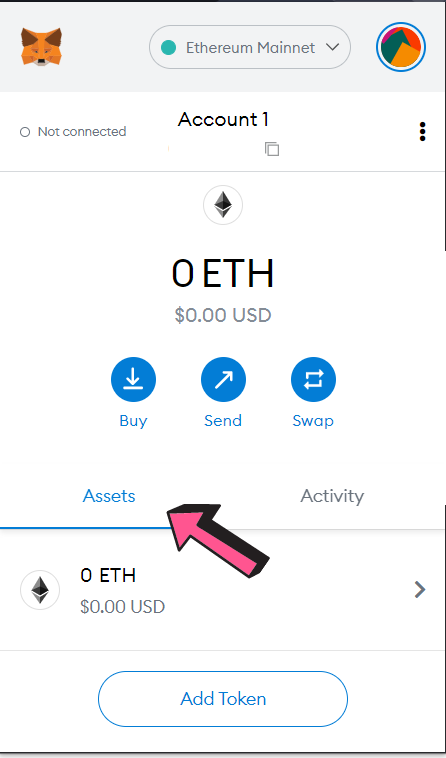
To see your tokens, click on the Assets tab. Your tokens should be listed under this tab.

If your token is not listed automatically, you may add the tokens manually. On your account page, scroll down to find the Add Token button. This will bring you to a search bar, where you can find popular (standard) tokens easily.
-How to use the search bar
You may follow these steps:
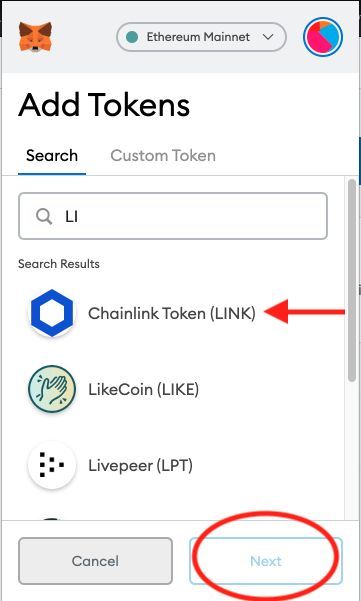
1.Type in words contained in the token you would like to search. For example, if I would like to look for Chainlink (Symbol: LINK), I just type in "LI” in the bar, and the search bar will return all the suggestions.
2.Select token of interest, and click Next to proceed. (As soon as you select a token, the button's border will be highlighted in blue)
Click Add token to proceed. You will be then redirected to your account page. The token you have just added will be listed.
-How to hide the token
Once added, you can Hide the token from your token list as well by clicking the three dots icon in the top right corner, and proceeding to Hide (token name).
If the token you search for is not among the most popular tokens, the search bar may not return the token you queried. In this case, you could add a custom token (manually).
Need more help?
Contact us!
The CannaCoin team is ready to help. Please fill in the information below and a member of our team will contact your directly.